 Live Manual
Setup
Connect your first website
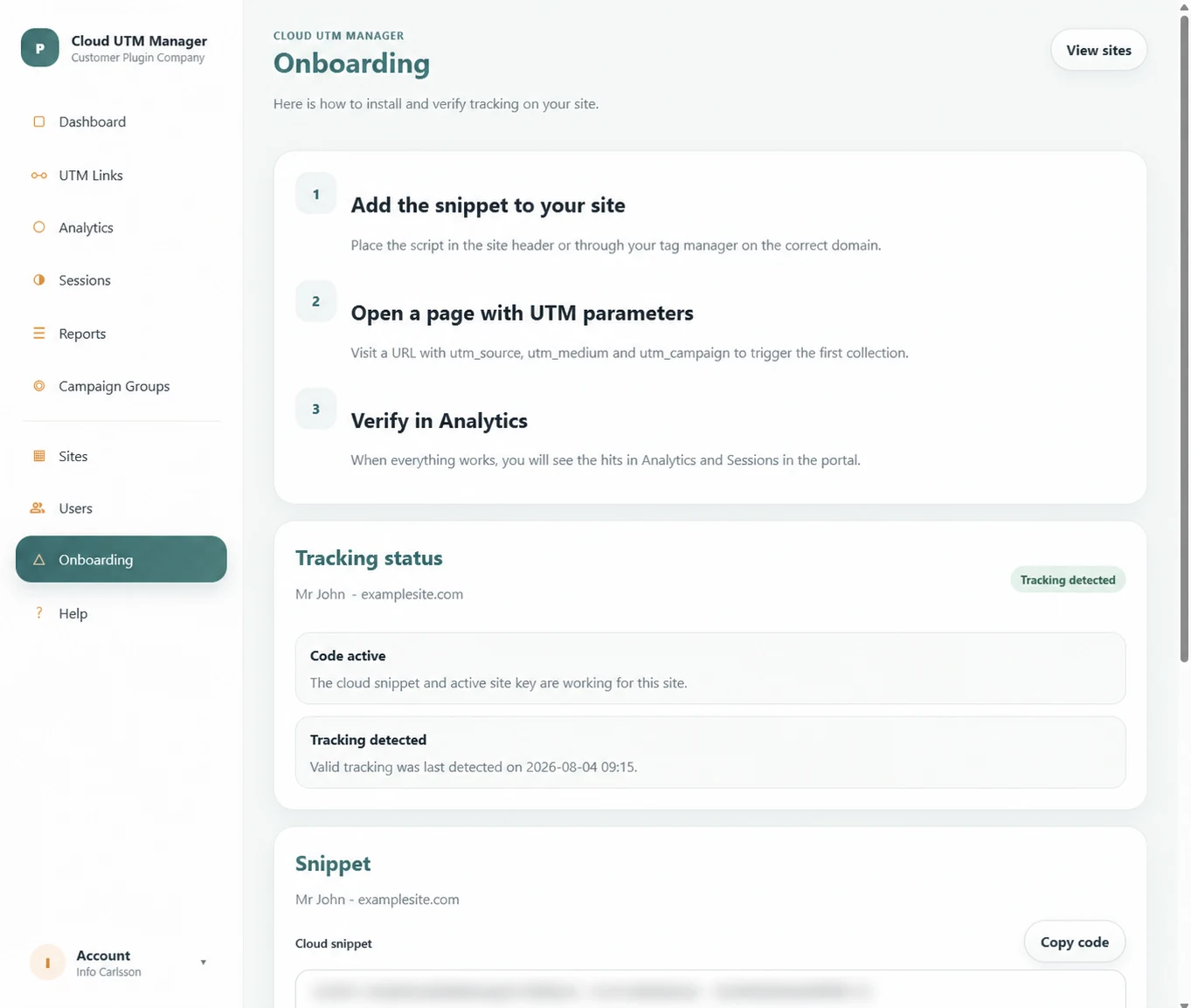
The Onboarding and Sites views contain the site-specific tracking snippet. Install it on the matching domain, open a tagged landing page and confirm that data reaches Analytics.
Client PortalOnboarding
Install the tracking snippet
- Open Onboarding in the left menu and confirm that the displayed site is the website you intend to track.
- Select Copy code. Add the complete snippet to the global header, footer or your tag manager so it loads on every tracked page.
- Publish the website change and clear any site or CDN cache that could delay the updated code.
Understand Sites and site keys
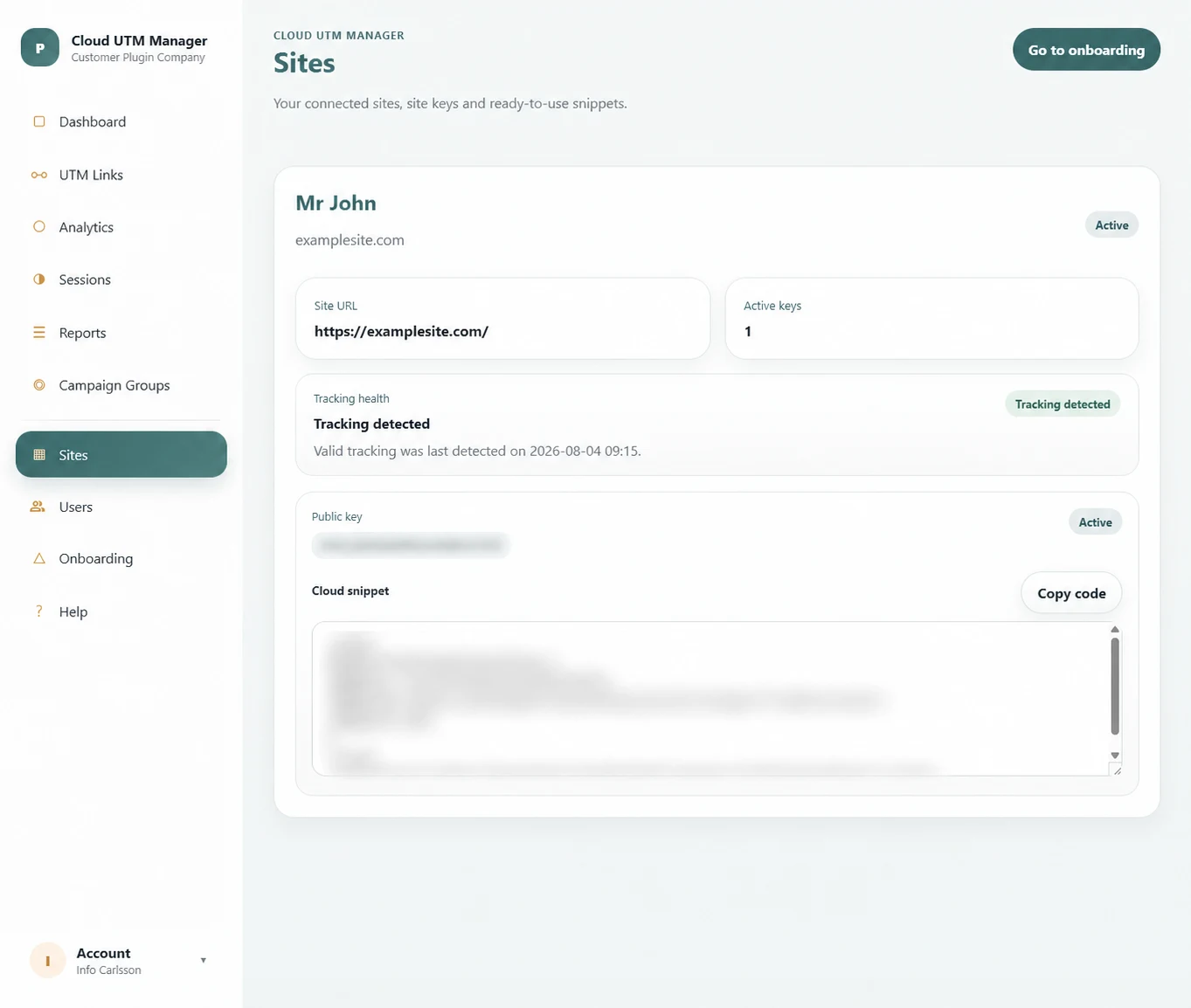
A customer account can contain one or more sites. Each site shows its URL, status, tracking health and active public keys. The generated snippet connects incoming data to the correct customer and site.
Site
The domain that sends traffic data. Always check the hostname before installing code.
Site key
The public identifier used by the cloud tracker. Treat complete snippets as configuration data and avoid sharing them in public screenshots.
Verify the installation
- Create or open a URL that contains at least
utm_source,utm_mediumandutm_campaign. - Visit that URL in a fresh browser session and continue to at least one more page if you want to test the journey.
- Return to Onboarding. Check that tracking is detected and note the last detected time.
- Open Analytics and Sessions to confirm that the visit appears.
Continue with your first campaign
Create a campaign group before building several links. A stable group and naming convention make filtering and reporting much easier later.