 Live Manual
Campaign building
Create clean UTM links and QR codes
A UTM link combines a destination URL with structured campaign parameters. UTM Manager Cloud keeps those links grouped, searchable and connected to later analytics.
Client PortalUTM LinksCreate new UTM link
Create a UTM link
- Open UTM Links and select Create new UTM link.
- Enter an internal name and select a campaign group. Use Create new group if the correct group does not exist.
- Add the destination URL and the UTM parameters that identify the campaign.
- Optionally mark the link as a paid ad, set a valid date and create a static or dynamic QR code.
- Check the live preview, then save the link.
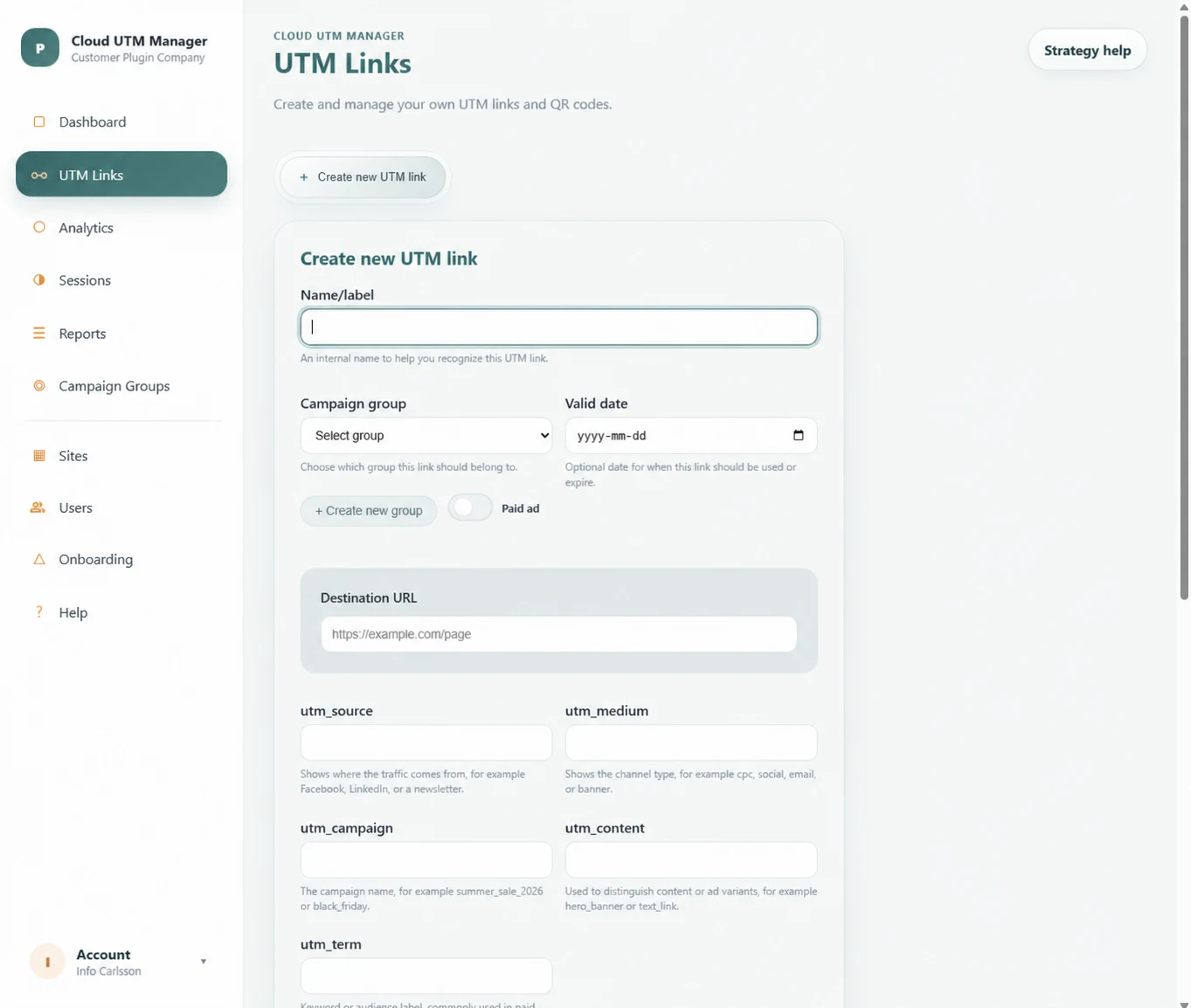
Use each UTM parameter consistently
| Parameter | Purpose | Example |
|---|---|---|
utm_source | Where the traffic comes from. | linkedin |
utm_medium | The channel type. | social |
utm_campaign | The shared campaign name. | spring_launch_2026 |
utm_content | The creative, placement or message variant. | hero_banner |
utm_term | A keyword or audience label, often used for paid search. | utm_software |
Recommended: use lowercase values, choose one separator such as an underscore, and document your naming convention before several people start creating links.
Choose the right QR type
Static QR
Destination stored in the code
Use when the final destination will not change. Replacing the destination later requires a new QR code.
Dynamic QR
Redirect controlled by the platform
Use when you may need to change the destination while keeping the printed QR code. Dynamic QR use is counted separately by the subscription.
Test before publishing. Scan the final QR asset from a real device and confirm both the destination and the UTM values before sending anything to print.
Find and manage existing links
Filter by campaign group, source, campaign or date, search by name or final URL, and sort names A–Z or Z–A. Available row actions support editing, duplication and deletion. Plan-limit messages show when new links or QR codes can no longer be created.